இன்வென்டரியில் புதிய ரா மெட்டீரியல் சேர்த்தல்
இந்த வழிகாட்டி, ஸ்டாஃப் செயலி மூலம் இன்வென்டரியில் ஒரு புதிய ரா மெட்டீரியலை யூனிட் பெயர், ஸ்டாக் மற்றும் மதிப்பு அமைப்புகளுடன் எவ்வாறு சேர்க்கலாம் என்பதை விளக்குகிறது.
தொடங்குவதற்கு முன்
- இன்வென்டரி திருத்த அனுமதி (Edit access) கொண்ட ஸ்டாஃப் செயலியில் உள்நுழைந்திருக்க வேண்டும்
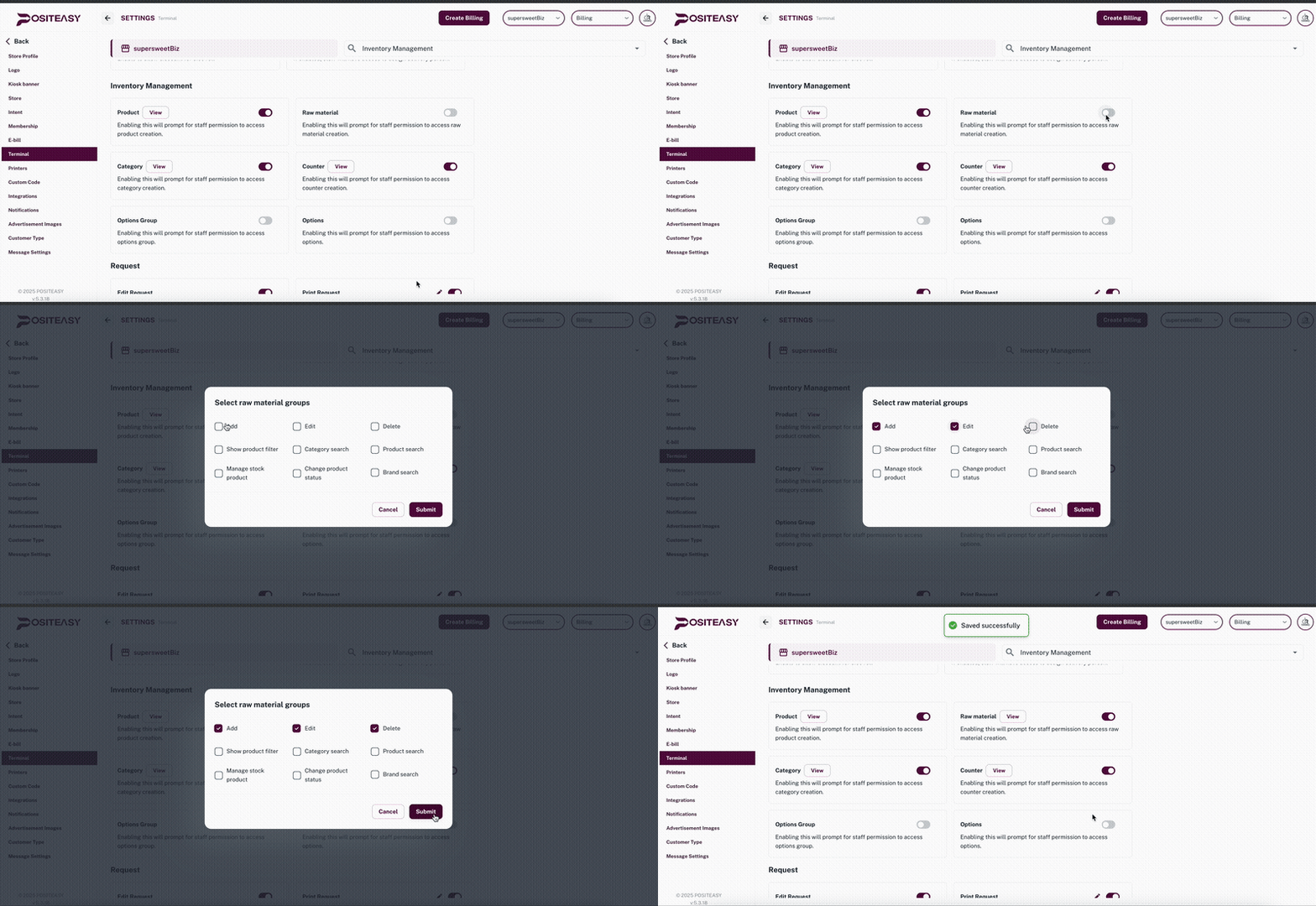
caution
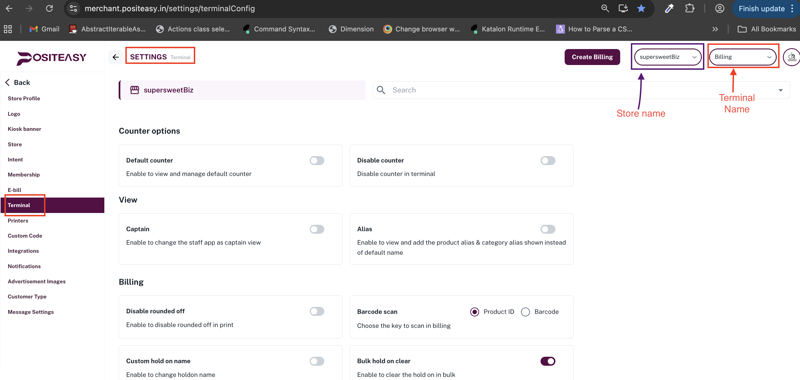
மெர்சண்ட் செயலியில் டெர்மினல் அமைப்புகளை மாற்றும் போது, சரியான டெர்மினல் தேர்வு செய்யப்பட்டுள்ளதா என்பதை உறுதி செய்ய வேண்டும்.
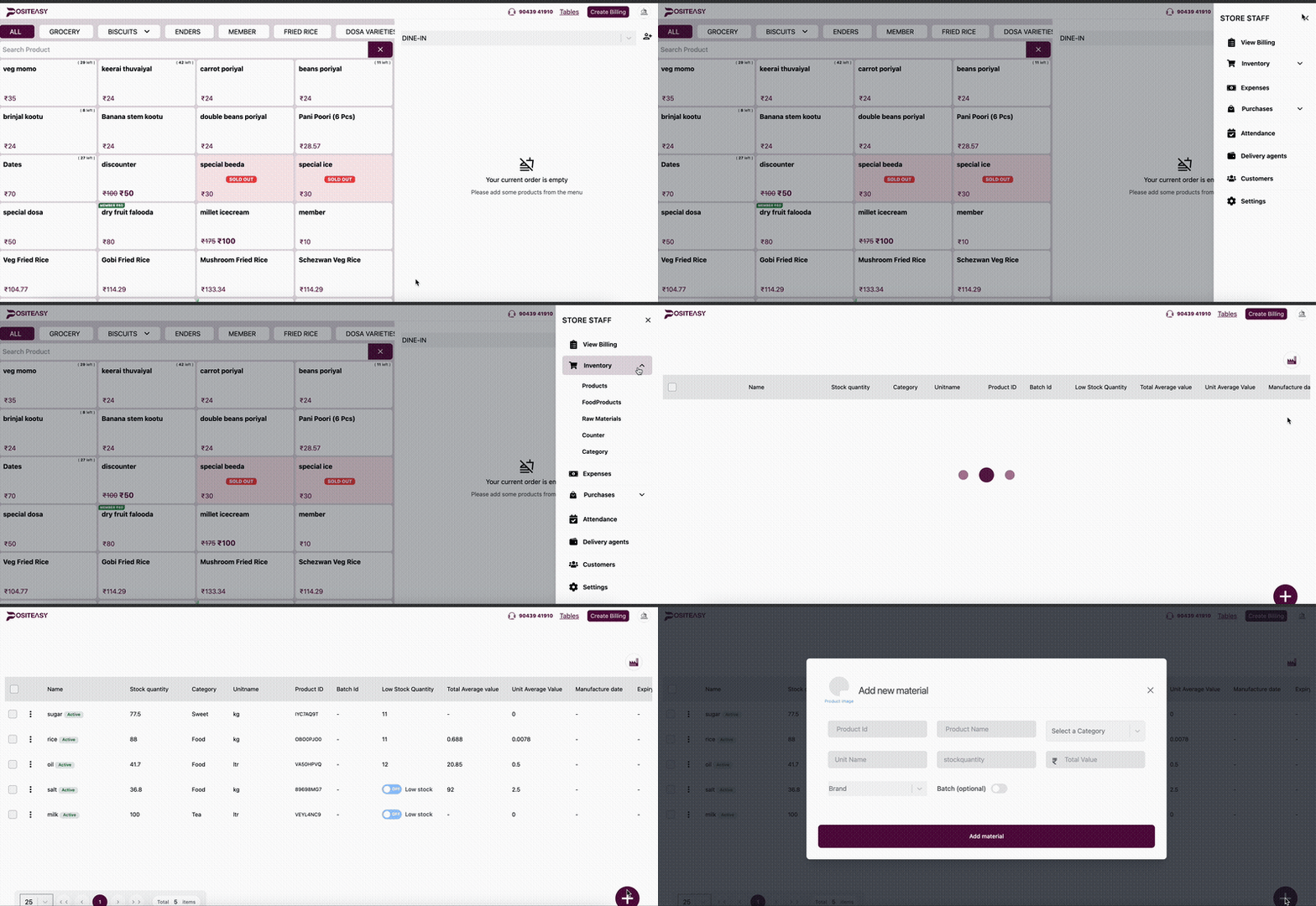
படி 1: இன்வென்டரி மாட்யூலை திறத்தல்
- ஸ்டாஃப் செயலி → மேற்பகுதியில் உள்ள ப்ரொஃபைல் ஐகான் → இன்வென்டரி → ரா மெட்டீரியல்ஸ் தேர்வு செய்யவும்.
படி 2: புதிய ரா மெட்டீரியல் சேர்த்தல்
- Add New Material
 பொத்தானைத் தேர்வு செய்யவும்.
 - New Raw Material படிவம் திறக்கப்படும்.
படி 3: அடிப்படை விவரங்கள்
Basic Details பகுதியில்:
- ரா மெட்டீரியல் பெயர்: பயன்படுத்தப்படும் மூலப்பொருளின் பெயர்
(எ.கா: அரிசி, எண்ணெய், மிளகாய்) - கேடகரி: ஏற்கனவே உள்ள கேடகரியைத் தேர்வு செய்யவும்
(எ.கா: Vegetables, Spices, Packing Materials) - யூனிட் பெயர்: அளவுக் கணக்கீட்டு யூனிட்
(எ.கா: Gram, Litre, Piece) - ஸ்டாக் அளவு: தற்போதைய இருப்பு
- மொத்த மதிப்பு: தற்போதைய ஸ்டாக்கின் மொத்த மதிப்பு
- பிராண்ட்: ஏற்கனவே உள்ள பிராண்டைத் தேர்வு செய்யவும்
(எ.கா: India Gate, Aachi, TATA)
note
ரா மெட்டீரியல் பெயர் தனித்துவமானதாகவும் சரியானதாகவும் இருக்க வேண்டும்; அப்போதுதான் தேடல் மற்றும் அறிக்கைகள் சரியாக இயங்கும்.
படி 4: ரா மெட்டீரியலை சேமித்தல்
- உள்ளிடப்பட்ட விவரங்களை சரிபார்க்கவும்
- Add Material பொத்தானைத் தேர்வு செய்து சேமிக்கவும்
இந்த ரா மெட்டீரியல் சேர்க்கப்பட்டதும், அது ஸ்டாக் மேலாண்மை, அறிக்கைகள், ப்ராடக்ட் இணைப்பு உள்ளிட்ட அனைத்து செயல்பாடுகளுக்கும் பயன்படுத்த தயாராக இருக்கும்.